
Photo File Sizes Explained
It’s disappointing when we miss a great moment with a “Storage Full” message on our phone or find out that our amazing vacation photo looks blurry when we print it.A basic understanding of photo files sizes will help you understand why your photos have great or poor quality and what sizes are needed for print or web.
What are megapixels (MP)?
If your camera is 12MP, that means the size of the photo it produces is around 4000px by 3000px. 4x3=12. It's that simple! Converting megapixels to megabytes is a little more difficult figure out. A simple way to guestimate would be to multiply the megapixels by two. 12MP would be around 24 megabytes but could be more or less depending on your file format, for instance, e JPG, PNG, TIFF, or RAW.
Find The Size of a Photo
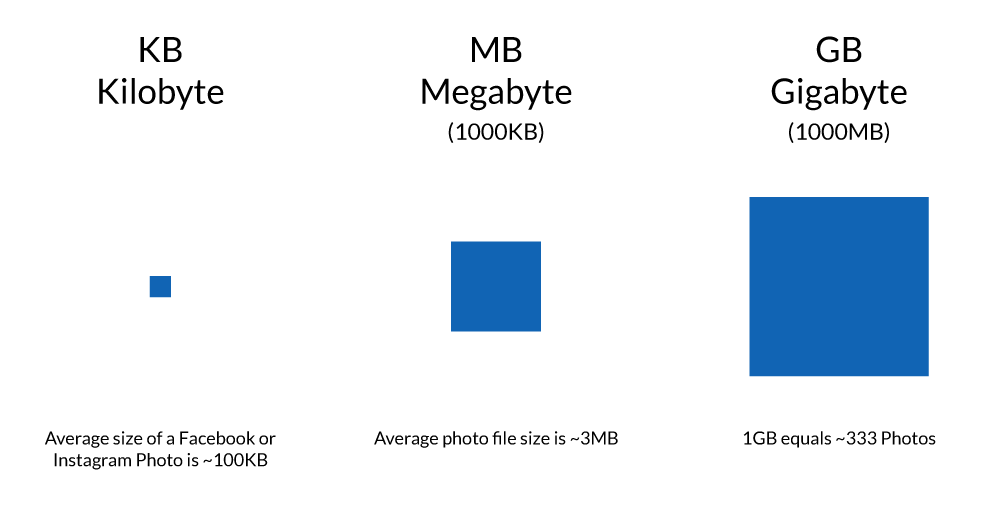
On a computer, you can right-click on your photo file to find its size. The two file sizes you will encounter are Kilobytes (KB) and Megabytes (MB).If the file size is displayed in kilobytes, you have a small photo fit for the web and social media. If your photo is 3 megabytes or more, your photo is probably a great size for printing. If your photo is over 30 megabytes you are in professional photographer territory. Unless you plan to print a 6ft landscape, files that size are just taking unnecessary space.
A Photo's Data Fingerprint
There is more to a digital photo file than just the image. Each time a photo is taken a bunch of data is carried along in the file. This is called EXIF data. It can include the date the photo was taken, the camera make and model, the ISO and f-stop settings, and even the location where the photo was taken.
How to See the Photo File Size and EXIF Data
Mac - For the file size, right-click the image and select Get Info. To see the EXIF data, click on the image to open it in Preview. In the menu, select Tools > Show Inspector > Info > EXIF.
iPhone - Unfortunately there isn’t a built-in way to see the photo size or EXIF data on an iPhone. Photo editing and storage apps like Google Photos will be able to show you, or you can search for an EXIF viewer in the App Store.
Windows - Right-click on the image file and click on the details tab to see the size and EXIF data.
Android - Go to your gallery and select a photo. Click the menu (three dots) and select details to see the size and EXIF data.
Don’t Accidentally Shrink Your Photos
Sending a photo through email or text message sometimes reduces the image quality, making it smaller and quicker to send. Cropping or adding a filter to your photo can also reduce its quality.Image quality can suffer when you post to social media sites. Those sites are interested in faster loading times and quicker viewing, so they will optimize your photo for the web. This can be ok because your computer screen can only display so much detail. You may not realize the change until you redownload the photo to print it.
When you share or edit a photo, it’s always best to keep an original copy somewhere safe.